- Open the official workflow. Load ComfyUI’s default text-to-image graph or open the example workflow JSON from the Workflows menu.
- Install the required checkpoint. Download the checkpoint named by that workflow and place it in the model folder for your ComfyUI installation.
- Refresh and select the model. Press R or restart ComfyUI, then confirm the Load Checkpoint node shows the expected filename.
- Run one unchanged test. Keep the example settings, queue one run with Ctrl+Enter, and wait for the Save Image node.
- Save workflow and result. Save the workflow JSON with the output and note the checkpoint filename and ComfyUI version.
Start with one working image
ComfyUI is a node-based interface for building image workflows. Your first goal is to load one official text-to-image example, use the model it names, and save one output. This confirms that the app, model file and graph work together. It does not prove that another model family, resolution or custom-node workflow will fit the same computer.
Open the official workflow
ComfyUI usually opens with a default text-to-image graph. You can also load an exported workflow JSON from the Workflows menu. The workflow describes node settings and connections; it does not include model weights. Use Comfy Org’s example workflow JSON ↗, which its official guide pairs with an SD1.5 checkpoint. Keep a copy of the untouched file as your baseline.
Install the checkpoint named by the workflow
Most ComfyUI installs do not ship with base model weights. Read the missing-model prompt or the guide for the workflow you chose, then download that exact checkpoint from its publisher. For the official SD1.5 example, the documented checkpoint belongs in the models/checkpoints folder under your ComfyUI installation. Portable and desktop installs can put that folder in different places. After installation, press R to refresh model lists or restart ComfyUI, then select the file in the Load Checkpoint node. A workflow JSON and a checkpoint are separate files.
- Follow the exact model link shown by the selected workflow.
- Place the file in the model folder for your installation.
- Refresh with
Ror restart ComfyUI. - Confirm the Load Checkpoint field shows a model name, not
null.
Follow data from model to saved image
The basic SD1.5 example connects a checkpoint loader, prompt encoders, an empty latent canvas, a sampler, a VAE decoder and a save node. The table describes that example; other architectures can use different loaders, encoders or graph layouts.
| Node | What it supplies or does | Check first |
|---|---|---|
| Load Checkpoint | Model, CLIP and VAE components | Select the checkpoint named by this workflow |
| CLIP Text Encode | Turns prompt text into conditioning | Confirm both prompt nodes receive CLIP |
| Empty Latent Image | Sets starting canvas dimensions and batch | Use workflow-provided values for first run |
| KSampler | Uses model, conditioning and latent input | Keep the example settings unchanged initially |
| VAE Decode | Converts sampled latent into an image | Use the compatible VAE from the workflow |
| Save Image | Writes completed output | Look for the result after the queue finishes |
Run the untouched baseline
With the matching checkpoint selected, leave the example’s settings as provided and queue one run with Ctrl+Enter. Wait for the Save Image node to finish, then save the output and workflow together. The purpose is diagnosis: if the sample fails, you have fewer changed settings to investigate. Do not copy one model’s resolution, sampler or step count into SDXL, FLUX, Qwen-Image or another family without checking that model’s own instructions.
- Save the exact workflow JSON you ran.
- Record ComfyUI version and checkpoint filename.
- Change one setting only after the baseline succeeds.
Fix the error at the stage where it appears
A missing model in a dropdown usually points to file placement, refresh or a mismatched workflow. A red node after loading a graph can mean a required custom node is unavailable; the basic official graph is a better starting point for isolating that issue. An out-of-memory error is different: check the selected model’s current requirements and reduce workload only using that model’s documented options. Comfy Org’s troubleshooting page covers model-loading cases. Save the exact error before changing several parts of the setup.
| Symptom | First checks | Avoid |
|---|---|---|
Checkpoint shows null | File path, filename, refresh/restart | Downloading unrelated model files |
| Red or missing custom node | Whether workflow requires that node; source and install steps | Installing a bundle before identifying dependency |
| Out-of-memory error | Model-specific memory guidance and active workload | Assuming one VRAM number fits every model |
Keep comparisons reproducible
Duplicate the working graph and change one variable at a time. Record the model file, prompt, seed behavior, dimensions and any setting changed. A fixed seed helps compare runs when the workflow supports it, but different software versions or components can still alter output. This is a practical comparison method, not an independent benchmark.
Save a useful project handoff
Keep the workflow JSON, a representative output and a short note together. List the checkpoint name, source and license; do not redistribute model weights unless their terms allow it. If asking for help, share the smallest reproducible graph and exact error. For model choices, see our local AI workstation guide; for image-preservation decisions, see our upscaling versus img2img guide. When ready to add custom nodes, read our ComfyUI FLUX and LoRA guide.
Next: add one capability
Once the official baseline works, add one feature for a clear reason, such as a compatible LoRA or an image-to-image step. Keep the original graph unchanged so you can return to a known-good setup. For local workflow automation, read ComfyUI and Comfy MCP workflows.
If the workflow runs out of memory
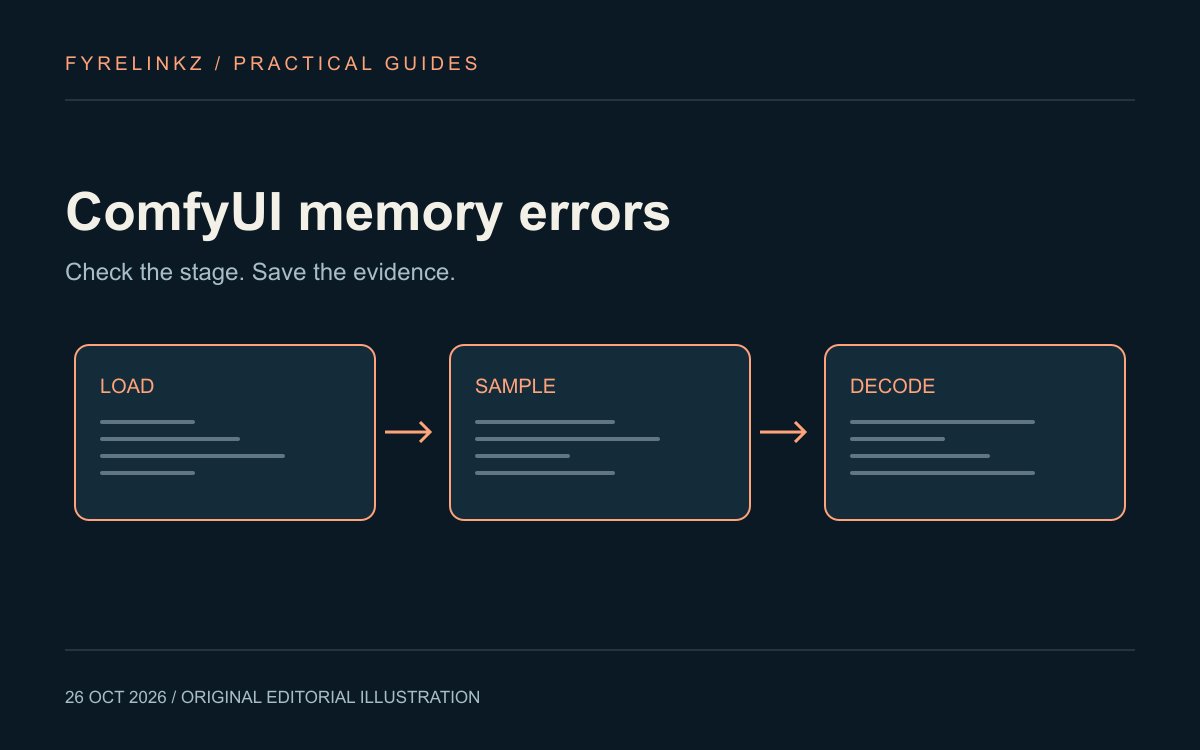
Use the ComfyUI memory-error guide to separate loading, sampling and VAE failures. Record one change per retry in the downloadable log rather than combining unrelated launch flags.
Frequently asked questions
Does a ComfyUI workflow JSON contain the model?
No. The workflow stores graph structure and settings; model weights are separate files that you obtain from the listed publisher.
Where do I put a checkpoint?
For the official basic example, Comfy Org documents the `models/checkpoints` folder under the ComfyUI installation. Desktop and portable installs may use different paths.
Why does my checkpoint dropdown show `null`?
Check that the exact file is in the correct model folder, then press `R` to refresh model lists or restart ComfyUI. Confirm the workflow expects that model type.
Can I use the SD1.5 example settings with FLUX or Qwen-Image?
No. Treat each model’s published workflow and hardware guidance as authoritative. Loader, encoder, resolution and memory requirements can differ.
Has FyreLinkz tested this workflow on every GPU?
No. This guide follows Comfy Org’s published example and troubleshooting documentation; it does not claim independent hardware benchmarks.
Sources & further reading
Primary sources checked Oct 26, 2026. Vendor statements are attributed; editorial advice is our own.
- 1
- 2ComfyUI Text to Image Workflow ↗Comfy Org
- 3Troubleshoot ComfyUI Model Issues ↗Comfy Org
Help us keep this useful. Report a factual correction →